
Documentation
Install SuperPlane
Install SuperPlane on AWS, Azure, or Google Cloud with Terraform, then create the owner account and install Fleet Manager.Install SuperPlane from published images. Terraform creates the cluster. You create the owner account in the browser, then run the Fleet Manager commands the product prints.
Select AWS, Azure, or Google Cloud once. The tabs on this page stay in sync. Plan for 45 minutes. You need a domain you control, such as superplane.example.com.
1. Sign in
Section titled “1. Sign in”Install Terraform 1.5 or later, kubectl, Helm 3.12 or later, and git.
Install the AWS CLI. The account must be able to create EKS, VPC, RDS, S3, EFS, IAM, and EC2 resources.
export AWS_PROFILE=your_aws_profileaws sts get-caller-identityTerraform cannot use an aws login source profile to assume a role, but the AWS CLI can. When terraform plan reports failed to load assume role, export the credentials and clear the profile:
eval "$(aws configure export-credentials --profile your_aws_profile --format env)"unset AWS_PROFILEaws sts get-caller-identityClear AWS_PROFILE so Terraform uses the exported credentials. Run the export again when those credentials expire.
Install the Azure CLI. You need Owner on the subscription, or Contributor plus User Access Administrator.
az loginaz account set --subscription your_subscription_idaz account show --query id -o tsvInstall the gcloud CLI, Packer 1.16.1 or later, and jq. You need Owner on the project, and billing must be on. Terraform and Packer use application-default credentials.
export PROJECT_ID=your_gcp_projectgcloud auth logingcloud auth application-default logingcloud config set project "$PROJECT_ID"2. Prepare the account
Section titled “2. Prepare the account”Use us-east-1. Copy the newest public AMI for each architecture into terraform.tfvars:
aws ec2 describe-images \ --region us-east-1 \ --owners 802589444644 \ --filters 'Name=name,Values=superplane-runner-*' 'Name=is-public,Values=true' \ --query 'sort_by(Images,&CreationDate)[].[Architecture,ImageId,CreationDate]' \ --output tableRegister the resource providers once per subscription:
for p in Microsoft.ContainerService Microsoft.Compute \ Microsoft.Network Microsoft.Storage Microsoft.DBforPostgreSQL; do az provider register --namespace "$p"doneStay in eastus with runner_zones = ["1"] unless you need another region. eastus and westus3 have both architectures. In eastus, arm64 is not offered in zone 2.
List the public runner images. Copy the newest id for each architecture into terraform.tfvars. Run the command in eastus or westus3.
for arch in amd64 arm64; do echo "$arch" az sig image-version list-community \ --location eastus \ --public-gallery-name Superplane-ba852f02-dd01-43eb-b8c4-67a57fdd8af8 \ --gallery-image-definition "superplane-runner-${arch}" \ --query "[].{version:name,id:uniqueId}" \ -o tabledone| Region | amd64 (Standard_D2ds_v4) | arm64 (Standard_D2pds_v6) |
|---|---|---|
| eastus | zones 1, 2, 3 | zones 1, 3 |
| centralus | not offered | zones 1, 2, 3 |
| westus2 | not offered | zone 1 |
| westus3 | zones 1, 2, 3 | zones 1, 2, 3 |
If this command prints no SKUs, set create_postgresql_flexible_server = false before the first apply. PostgreSQL then runs in the cluster.
az postgres flexible-server list-skus --location eastus -o tableCreate the address and the DNS record before Terraform. Let’s Encrypt checks public DNS during the apply.
gcloud services enable compute.googleapis.com iam.googleapis.com --project="$PROJECT_ID"gcloud compute addresses create superplane-ip --global --ip-version=IPV4gcloud compute addresses describe superplane-ip --global --format='get(address)'Create an A record from your domain to that address.
dig +short superplane.example.com @8.8.8.8The answer must be the static IP. Google Cloud has no public runner image yet, so you build one in step 3.
3. Set the Terraform variables
Section titled “3. Set the Terraform variables”Clone the Terraform installer at a fixed release tag. This keeps the infrastructure configuration stable until you choose to upgrade it.
git clone --branch v0.1.0 --depth 1 https://github.com/superplanehq/terraform.gitcd terraformcd awscp terraform.tfvars.example terraform.tfvarsdomain_name = "superplane.example.com"region = "us-east-1"runner_image_amd64 = "latest_amd64_ami"runner_image_arm64 = "latest_arm64_ami"superplane_chart_version = "1.0.0-rc4"Use the AMI IDs from the command above. x86_64 is amd64. Leave superplane_image_tag and helm_chart_path empty. The chart version has no v prefix. An empty image tag selects the image for that chart. The plan stops when runner_image_amd64 is empty. An empty arm64 AMI disables that architecture in the fleet wizard.
cd azurecp terraform.tfvars.example terraform.tfvarssubscription_id = "your_subscription_id"domain_name = "superplane.example.com"location = "eastus"runner_zones = ["1"]runner_image_amd64 = "latest_amd64_image_id"runner_image_arm64 = "latest_arm64_image_id"superplane_chart_version = "1.0.0-rc4"Use the image ids from the list command. Leave superplane_image_tag and helm_chart_path empty. The chart version has no v prefix. An empty image tag selects the image for that chart.
Terraform requires a runner image before the apply. Build the amd64 image from the repository root:
git clone https://github.com/superplanehq/superplane.git ../superplanepacker init ../superplane/release/runner/packer/gce/runner.pkr.hclpacker build \ -var project_id="$PROJECT_ID" \ -var architecture=amd64 \ -var machine_type=e2-standard-4 \ ../superplane/release/runner/packer/gce/runner.pkr.hclecho "projects/$PROJECT_ID/global/images/$(jq -r '.builds[-1].artifact_id' ../superplane/release/runner/packer/gce/manifest.json)"The build connects over SSH from a public IP in the default network. When the network blocks inbound SSH, use the Identity-Aware Proxy steps in the GCE runner image guide.
cd gcpcp terraform.tfvars.example terraform.tfvarsproject_id = "your_gcp_project"domain_name = "superplane.example.com"static_ip_name = "superplane-ip"runner_image_amd64 = "projects/your_gcp_project/global/images/image_name"superplane_chart_version = "1.0.0-rc4"Use the image path that the build printed. The plan stops when runner_image_amd64 is empty. To install without runners, set enable_runners = false and skip Fleet Manager in step 8. Leave superplane_image_tag and superplane_chart_path empty. The chart version has no v prefix. An empty image tag selects the image for that chart. A plain commit SHA in superplane_image_tag loads the UI from assets.superplane.com, and the browser blocks it on your domain. Keep machine_type at e2-standard-2 or larger.
4. Apply
Section titled “4. Apply”terraform initterraform plan -out tfplanterraform apply tfplanThe apply takes 15–25 minutes. On Google Cloud it also waits for the certificate, which can add about 15 minutes.
5. Connect kubectl
Section titled “5. Connect kubectl”terraform output -raw kubectl_config_commandRun the printed command.
The command updates kubeconfig for the EKS cluster.
Add --overwrite-existing so an older cluster named superplane does not block the update:
az aks get-credentials \ --resource-group superplane \ --name superplane \ --admin \ --overwrite-existingThe command gets credentials for zone us-central1-a unless you changed zone.
kubectl get nodesEvery node is Ready.
6. Point DNS at SuperPlane
Section titled “6. Point DNS at SuperPlane”kubectl get svc -n traefik traefik \ -o jsonpath='{.status.loadBalancer.ingress[0].hostname}'Create a CNAME for the host in domain_name. For superplane.example.com, the name is superplane. Point it at the hostname above.
dig +short superplane.example.com CNAME @8.8.8.8The command must print the load balancer hostname.
kubectl get svc -n ingress-nginx ingress-nginx-controller \ -o jsonpath='{.status.loadBalancer.ingress[0].ip}'Create an A record for the host in domain_name. For superplane.example.com, the name is superplane. Point it at that IP.
dig +short superplane.example.com @8.8.8.8The command must print that IP.
The A record already exists. Confirm it still matches the static IP:
dig +short superplane.example.com @8.8.8.8An entry in /etc/hosts does not issue the certificate. Wait until the certificate is ready. AWS and Azure usually take 5–10 minutes. Google Cloud can take 15.
kubectl get certificate -n superplanekubectl get pods -n superplaneThe certificate is Ready, and every pod is Running.
7. Create the owner account
Section titled “7. Create the owner account”terraform output -raw superplane_urlSuperPlane creates an organization named Demo for this account.
-
On Create the owner account, enter the name, email, and password. The password needs 8 or more characters, one number, and one capital letter. Select Continue.
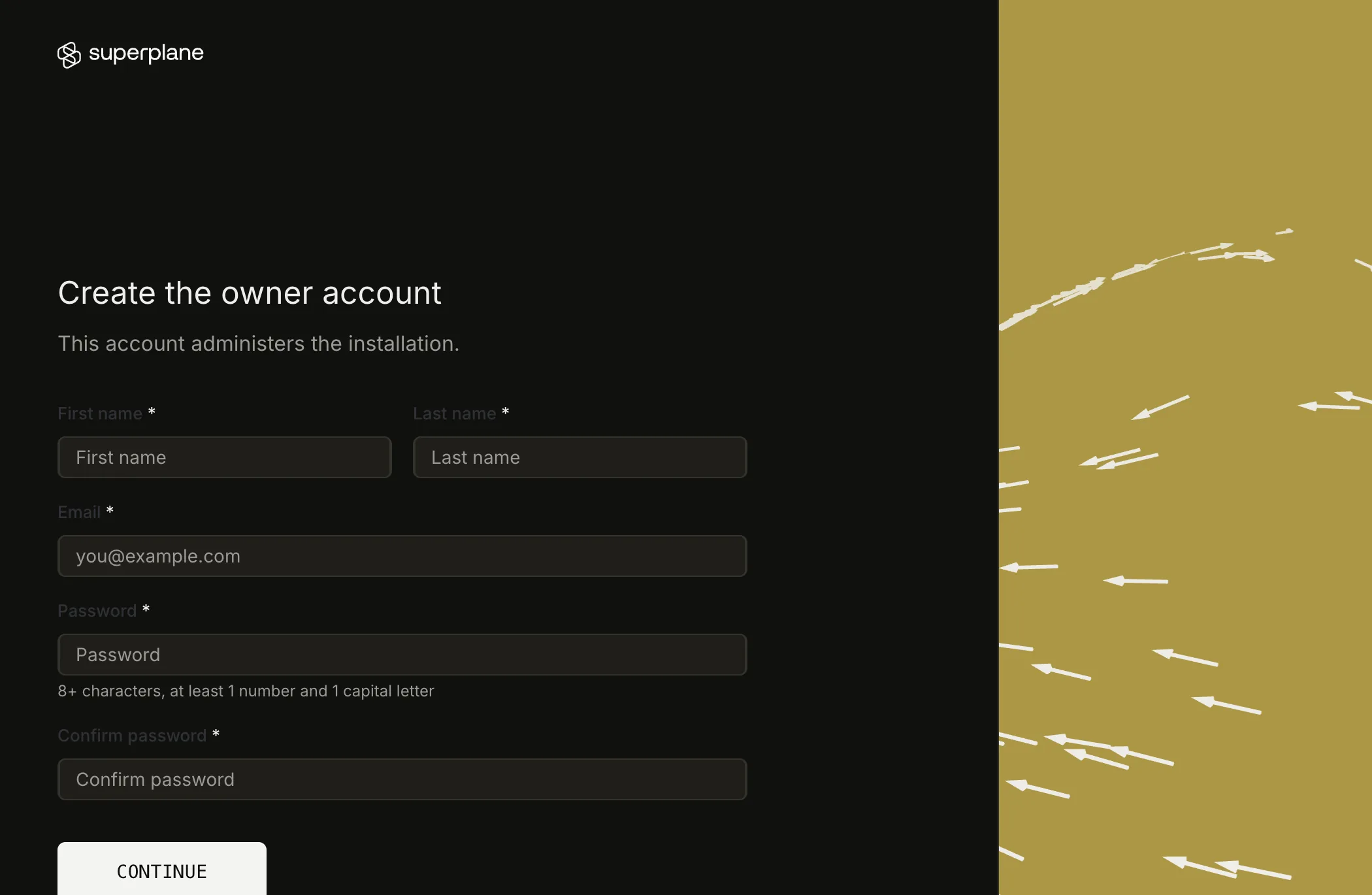
Create the owner account. This screen is the same on every cloud. -
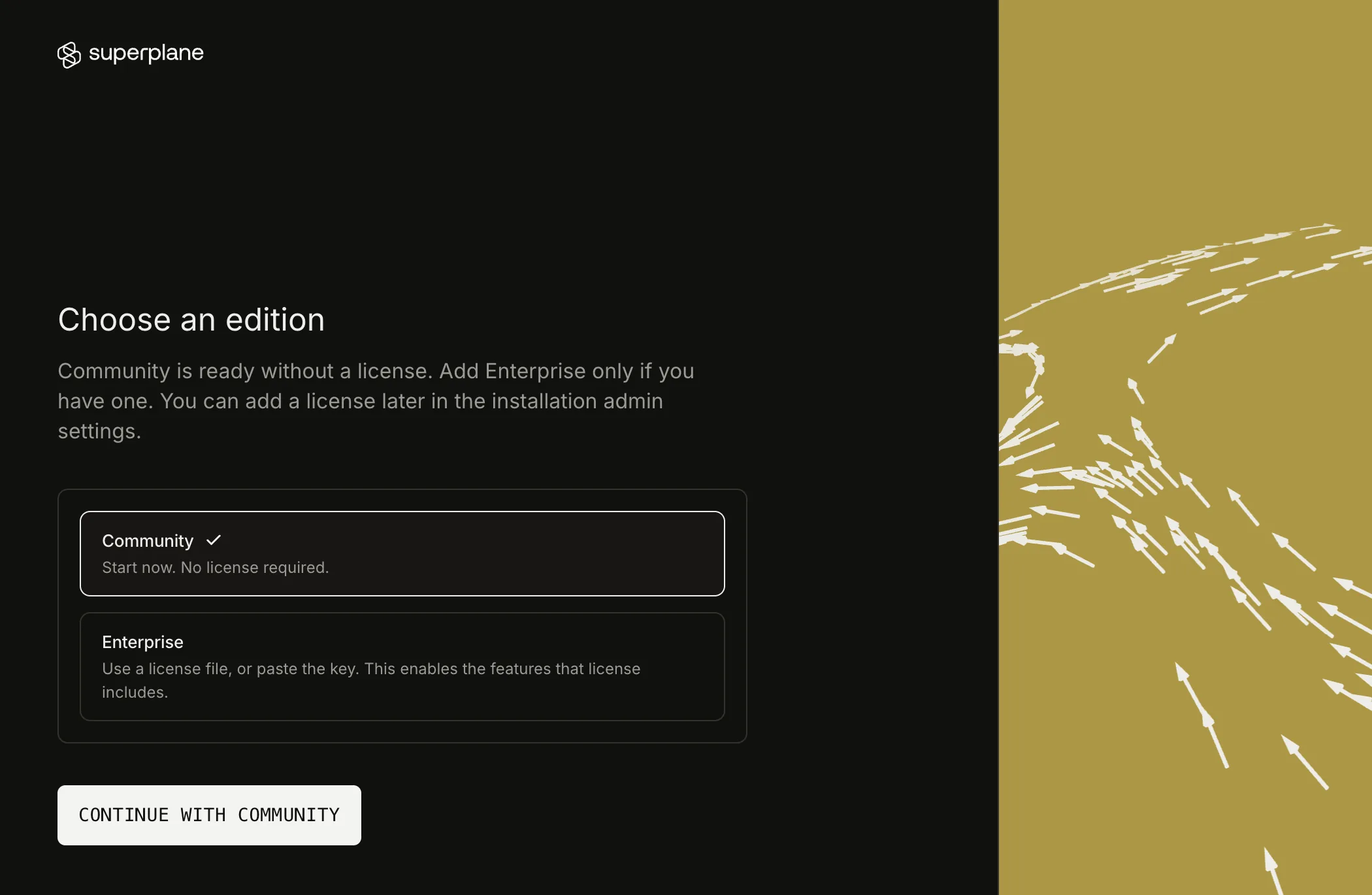
On Choose an edition, select Continue with Community. Select Enterprise only when you have a license file or a license key.
-
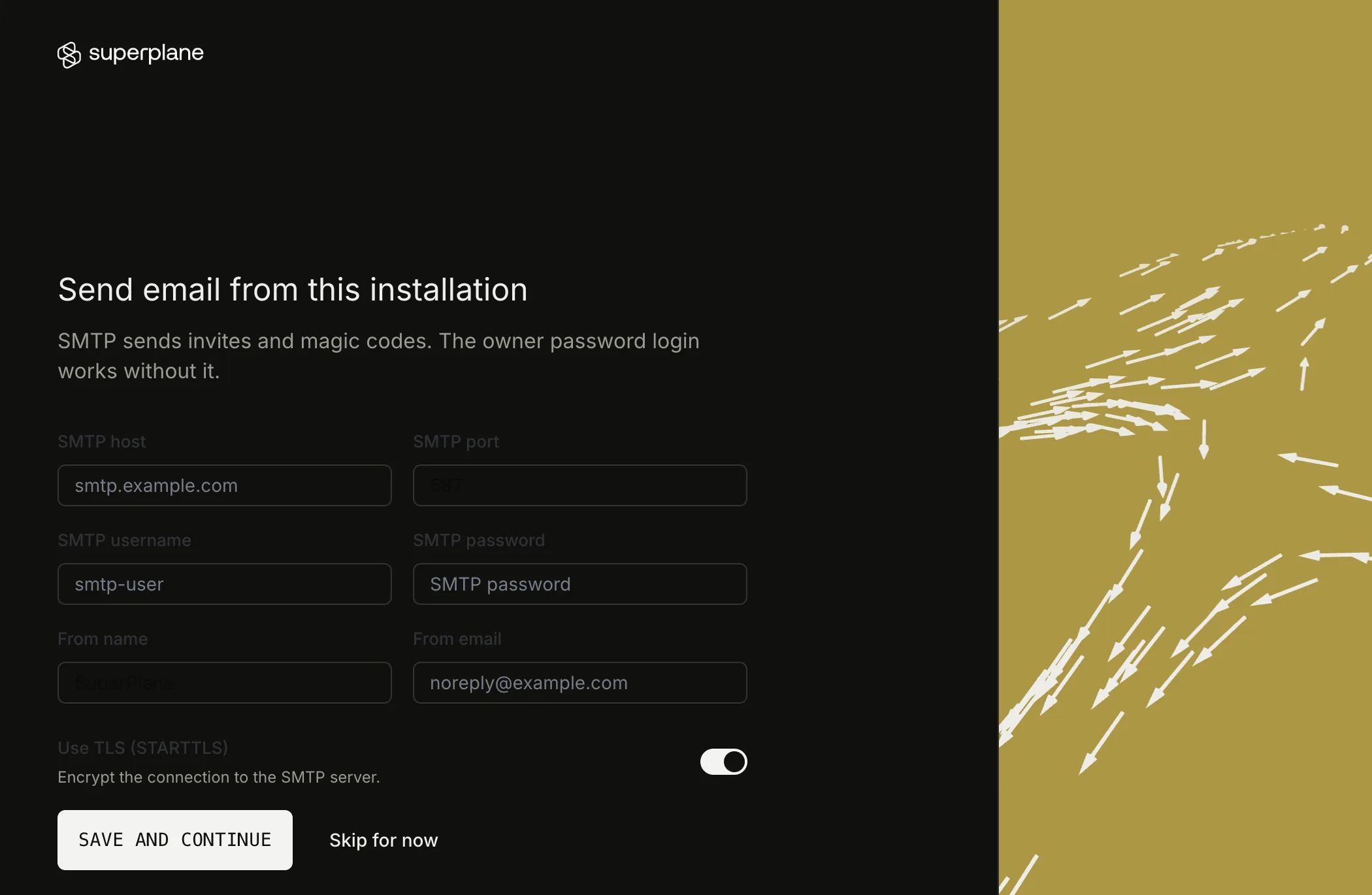
On Send email from this installation, select Skip for now.
8. Install Fleet Manager
Section titled “8. Install Fleet Manager”-
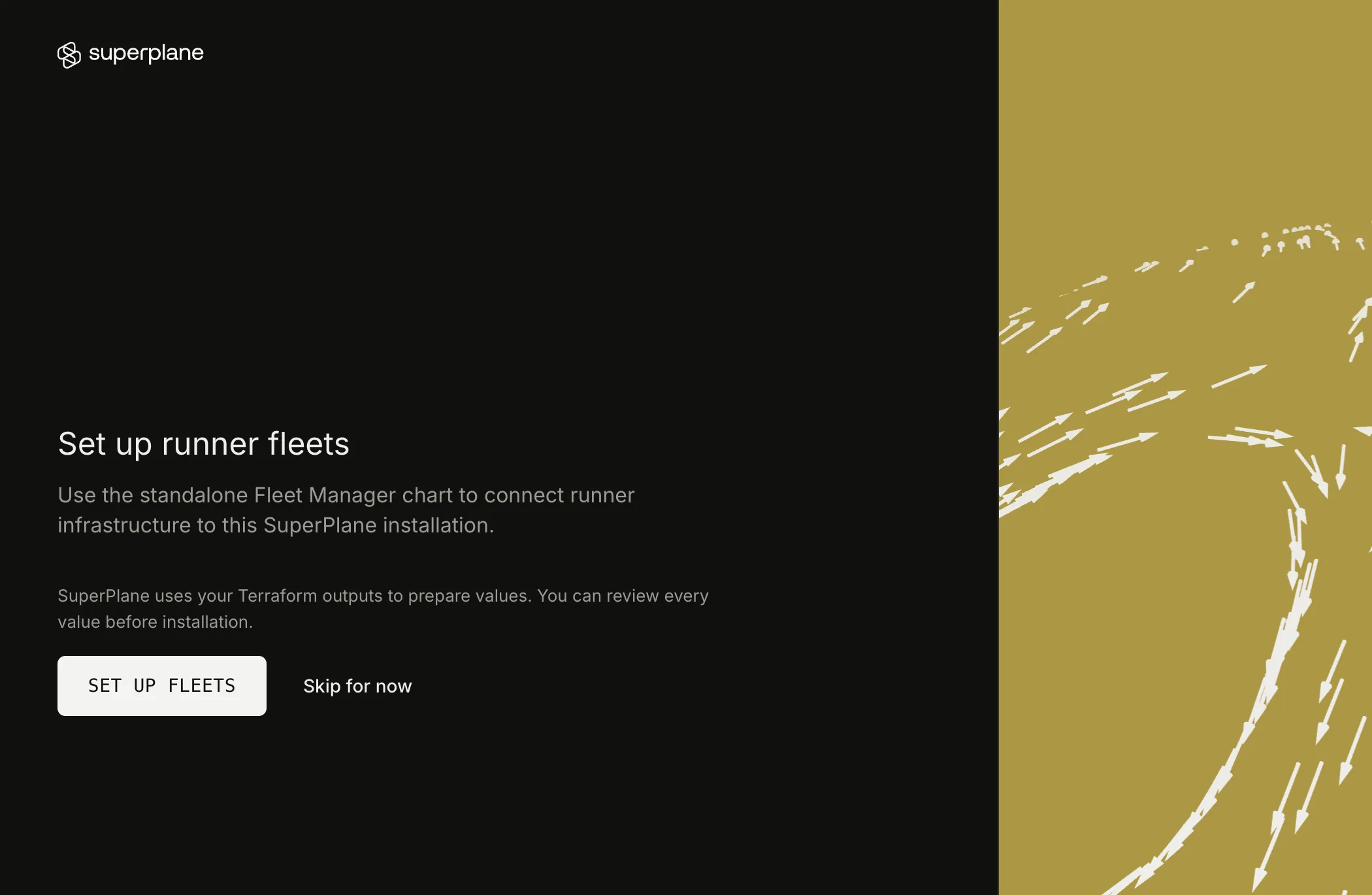
On Set up runner fleets, select Set up fleets.
-
On Choose a cloud provider, select the provider Terraform loaded, then select Continue.
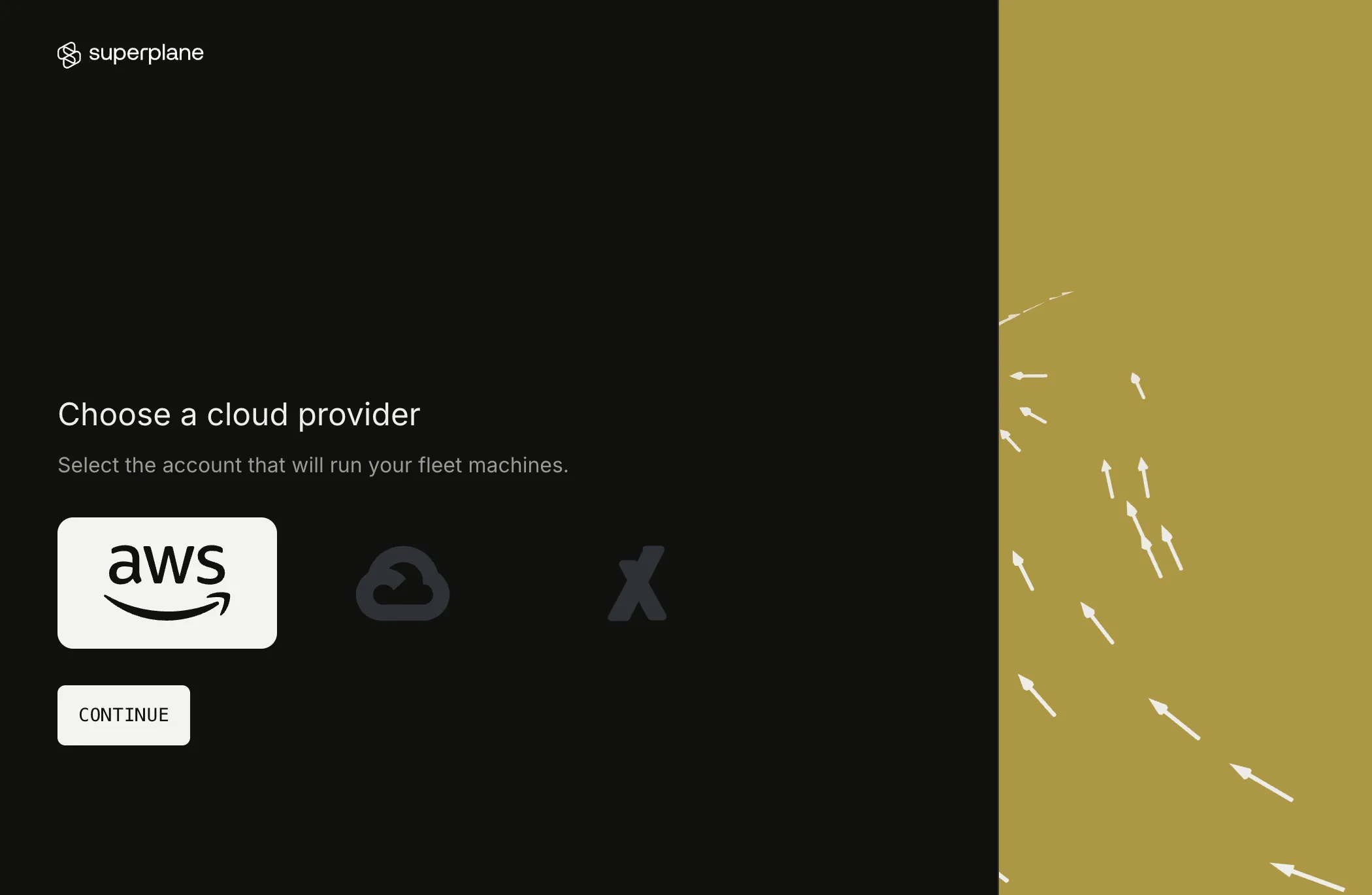
-
On Configure the default fleet, keep
e1-large-amd64. The default Warm capacity is1. The default Maximum capacity is10. Change either value when you need a different number of machines. Each AWS or Azure machine uses 2 vCPUs. Select Generate install command.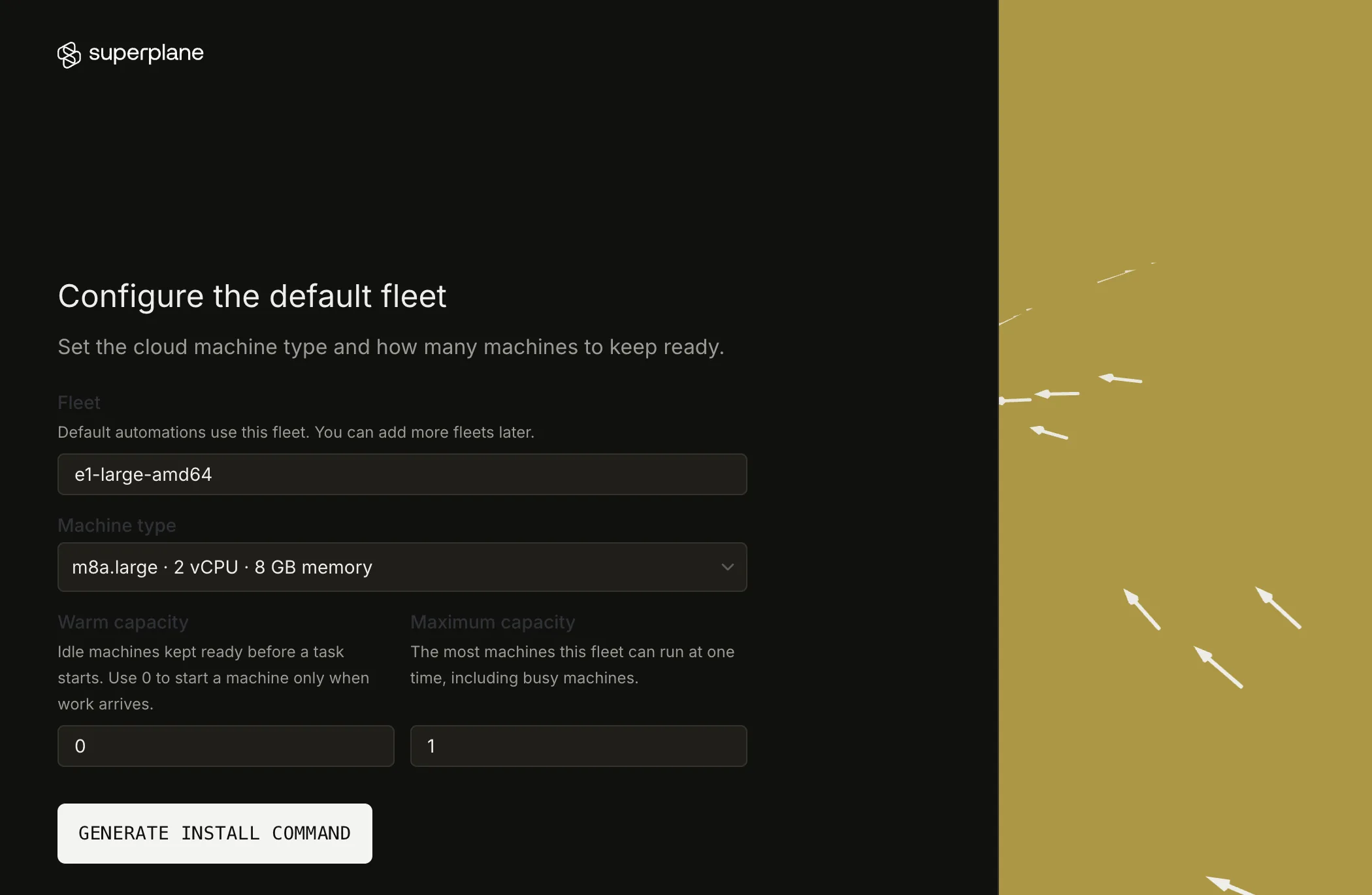
The machine type list follows the provider. Capacity is the same on every cloud. -
On Create the chart values, copy the command and run it. It writes
fleet-manager-values.yaml. Select Continue.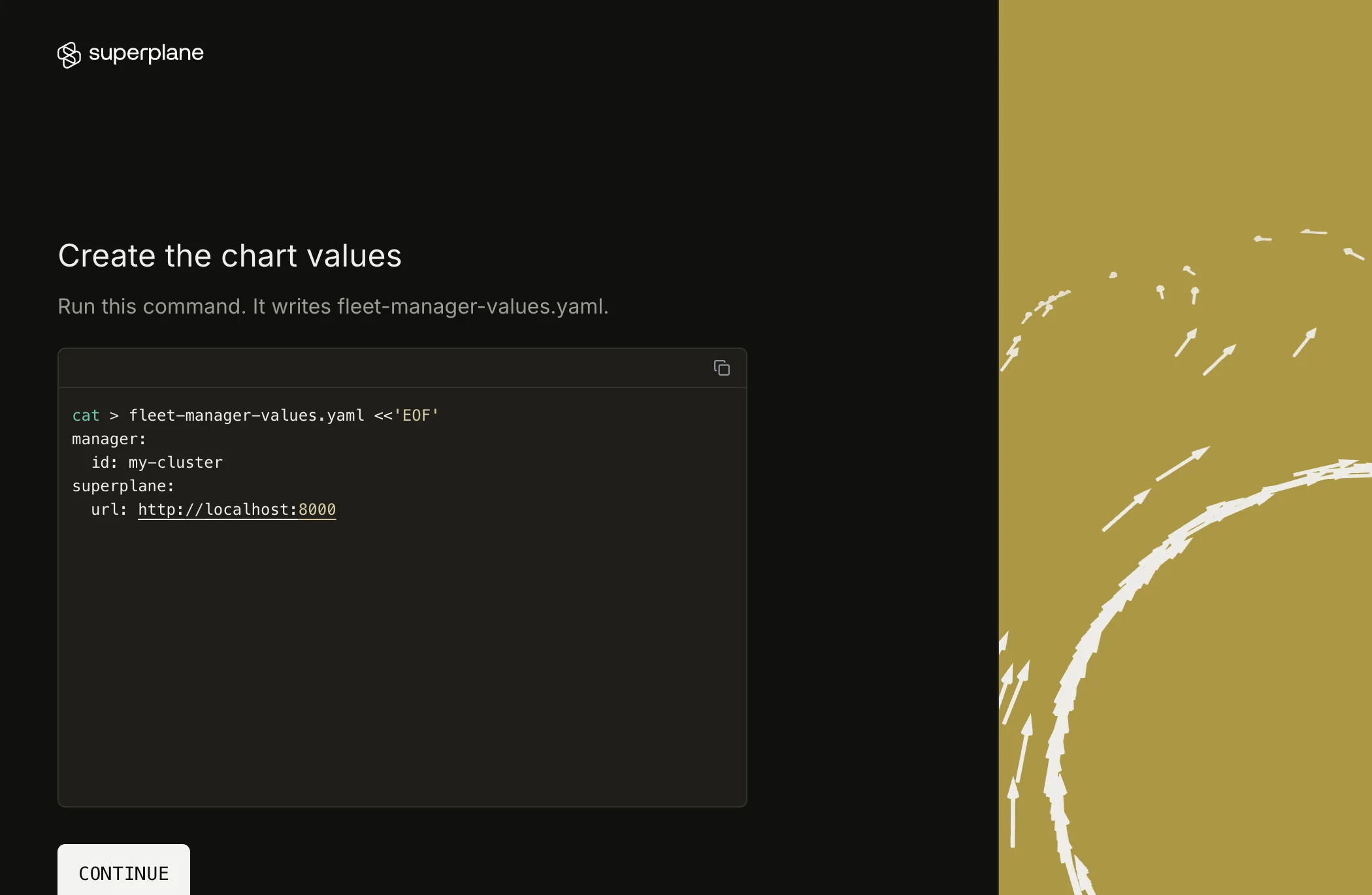
-
On Install the chart, run the Helm command in the same directory. When the page says Fleet Manager created the selected fleets, select Finish installation.
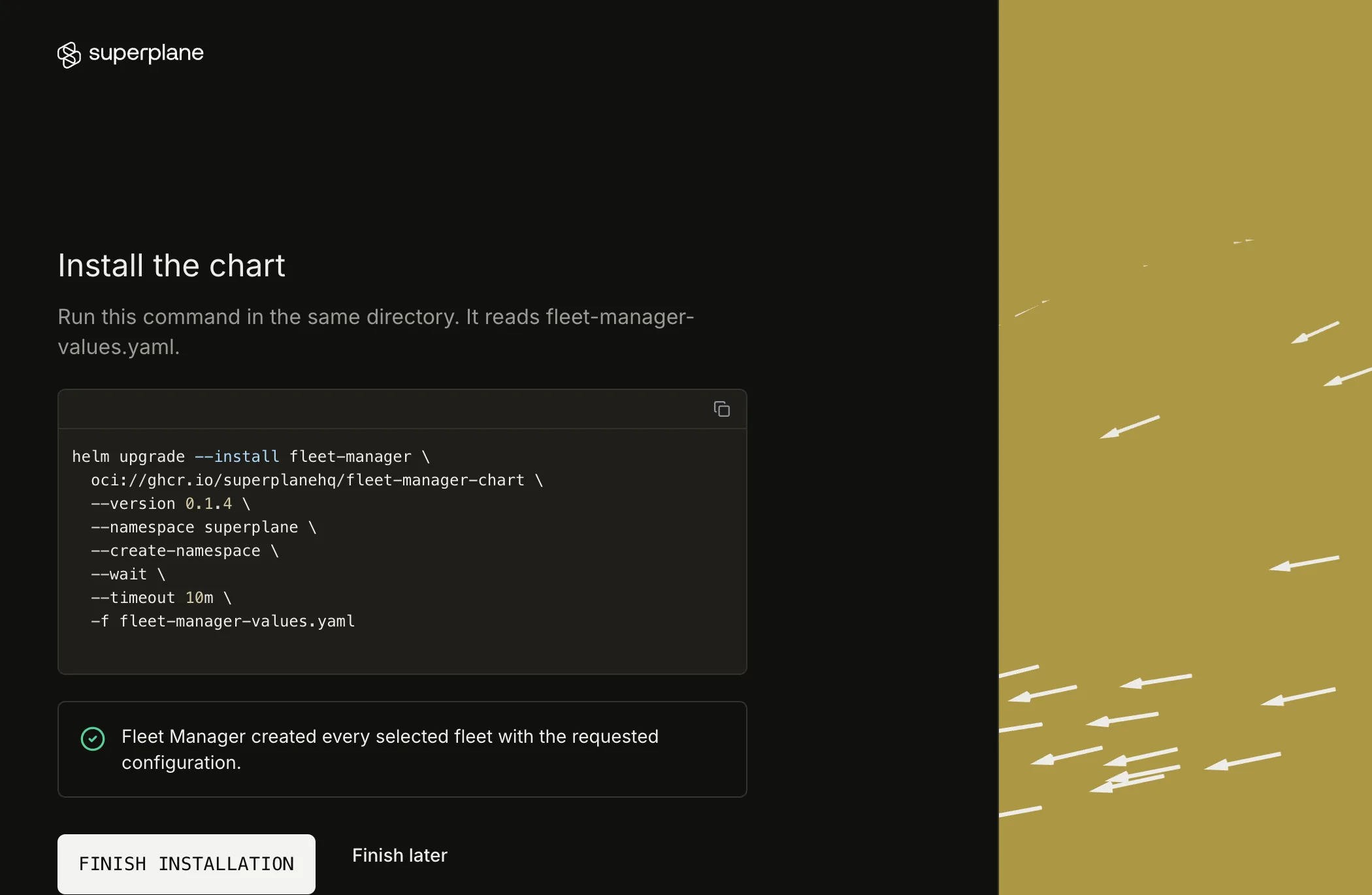
The machine type is m8a.large for amd64 and m8g.large for arm64. If the file contains <RUNNER_IMAGE>, the AMI was empty at apply time. Set it, run terraform apply again, and reload the wizard.
The amd64 size is Standard_D2ds_v4. For arm64, set vmSize to Standard_D2pds_v6. A v5 size fails Trusted Launch. If the file contains <AZURE_ZONE>, set zones to the same list as runner_zones, then run Helm.
The default machine type is e2-standard-4. The fleet uses the image from runner_image_amd64. For an arm64 fleet, build an arm64 image in a zone that has T2A machines, set runner_image_arm64, and run terraform apply again.
9. Next
Section titled “9. Next”Start a task on the default fleet. With the default capacity, one machine is ready and the fleet can run 10 machines. The quickstart connects a repository. Use your installation URL.
When something fails, use Troubleshooting. To move to a newer chart or remove the stack, use Upgrade and uninstall.