
Console
The console is the per-app operational surface. It turns workflow state into an
at-a-glance view: notes and runbooks, pinned nodes, tables of live data, KPIs, and
charts. Every app has one console, configured from the UI or from console.yaml in
the app’s git repository.
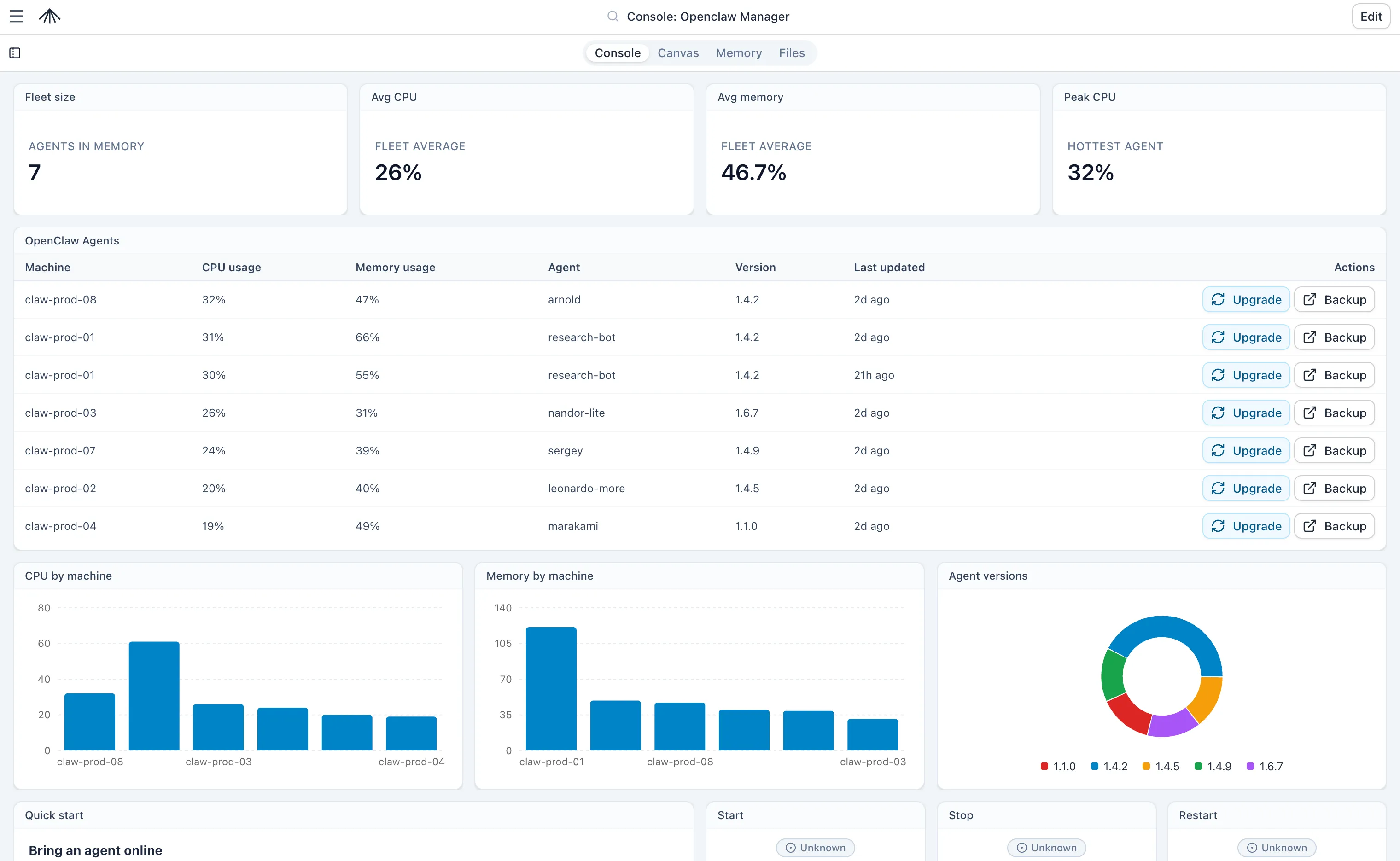
When to use a console
Section titled “When to use a console”The canvas shows the graph of nodes and connections — it’s where you design workflows and debug a specific run. The console answers a different question: what is the state of this system right now?
Reach for a console when you want:
- Release dashboards — current build, last deploy, error rate, and a Run button to promote.
- Preview environments — one row per open pull request, with health status and a Destroy action.
- Incident views — open incidents, active responders, recent runbooks, links to related tools.
- Operational status surfaces — anything where the day-to-day reader cares about outcomes, not topology.
A console belongs to one canvas. Templates do not have editable consoles.
How it works
Section titled “How it works”A console is a 12-column draggable grid. Each cell holds a panel (also called a widget) — Markdown notes, pinned nodes, tables, charts, KPIs, or custom HTML. Panels read live data from canvas memory, executions, or runs, and re-render as new data lands.
Open the console from the app header (alongside Canvas, Memory, and Files). The canvas graph is hidden while console mode is active, and the panel grid takes over the main area.
Editing the console
Section titled “Editing the console”Click Edit in the top-right of the console to enter edit mode. In edit mode you can:
- Add panels from the panel picker.
- Move and resize panels by dragging their header or bottom-right corner.
- Configure a panel by clicking its edit icon — each panel type has its own form.
- Delete panels.
- Import / export the console as YAML.
Changes follow the same stage and commit flow as the canvas: edits stay in staging until you commit them. See Files for the underlying YAML and how it relates to canvas versioning.
Permissions
Section titled “Permissions”| Action | Required permission |
|---|---|
| View the console and export YAML | Canvas read access |
| Add, move, resize, edit, or delete panels | canvases:update |
| Import YAML | canvases:update |
| Run a node from a node panel or table row action | canvases:update |
Read-only viewers see the console and can export the YAML, but the Edit button and any runtime Run buttons are disabled with a tooltip explaining why. Server-side authorization is the source of truth — UI state mirrors it.
Panel types at a glance
Section titled “Panel types at a glance”The console ships with seven panel types. See Widgets for the full reference.
| Panel | Purpose |
|---|---|
| Markdown | Notes, runbooks, and status copy with GitHub-flavored markdown, alerts, sections, Mermaid, canvas chips, and live variables. |
| HTML | Custom HTML with scoped <style> blocks and a Tailwind utility safelist. |
| Node | Pin one canvas node with live status and an optional Run button. |
| Key Nodes | Pin several nodes in one card with short purpose lines. |
| Table | Render rows from memory, executions, or runs, with filters and row actions. |
| Chart | Bar, stacked-bar, line, area, or donut chart over the same data sources. |
| Number | One KPI, several KPIs side-by-side, or an aggregate combined across namespaces. |
Tables, charts, and numbers all draw from the same three data sources: memory, executions, and runs.
console.yaml
Section titled “console.yaml”Every console is stored as YAML. You can edit it from the UI, or from the Files
tab as console.yaml in the app’s git repository. The canonical shape is:
apiVersion: v1kind: Consolemetadata: canvasId: 00000000-0000-0000-0000-000000000000 name: Example canvasspec: panels: - id: envs type: table content: dataSource: kind: memory namespace: environments render: kind: table columns: - field: service label: Service layout: - i: envs x: 0 y: 0 w: 12 h: 6Two top-level lists drive everything:
spec.panels[]— the panel definitions. Each panel has anid, atype, and a typedcontentobject. Panel types and their content shapes are documented in Widgets.spec.layout[]— the grid placement for each panel. Theifield references a panelid;xandyare column/row positions,wandhare the width and height in grid units.
apiVersionmust bev1.kindmust beConsole.- Unknown top-level, metadata, panel, or layout fields are rejected.
metadata.canvasIdandmetadata.nameare informational on export.- Missing
spec.panelsorspec.layoutmeans an empty list. - Maximum panel count is 50.
- Maximum panel payload size is 1 MiB.
Importing and exporting
Section titled “Importing and exporting”Export is available to everyone with read access — open Edit mode and use the YAML modal, or pull the file from the Files tab.
Import is replace-all. When you import a YAML file, every panel and every layout item is replaced in a single update. There is no merge, no patch, and no per-panel import.
Bundling a console with an installable app
Section titled “Bundling a console with an installable app”Apps installed from a public GitHub repository can ship an optional console.yaml
alongside canvas.yaml. When present, the install flow reads both files from the
same ref and writes the console into the new canvas.
- The file lives at
console.yamlin the repo root, on the same branch ascanvas.yaml(typicallymainormaster). - It uses the same
apiVersion: v1,kind: Consoleshape documented above. - A malformed file aborts the install before any canvas is created — fix the YAML and re-run install.
- A missing file is fine. The new canvas starts with an empty console you can fill in later.
metadata.canvasIdis ignored on install. The panels and layout become the new canvas’s full console.
Where to go next
Section titled “Where to go next”- Widgets — every panel type, its configuration fields, and a YAML example.
- Data sources —
memory,executions, andruns, plus the markdown / HTML variable system. - Expressions & CEL — how console expressions differ from canvas Expr, with the full CEL builtins catalog.