
Agent
SuperPlane includes a built-in AI agent that helps you build workflows and dashboards, debug executions, and manage repository files. The agent is context-aware, persistent, and operates safely within your app’s permission boundaries.
Agent modes
Section titled “Agent modes”The agent adapts to your current task using two modes:
Build mode
Section titled “Build mode”Build mode gives the agent write access to your app. Use it to design workflows from scratch, or install an existing app and chat with the agent to adjust it to your use case.
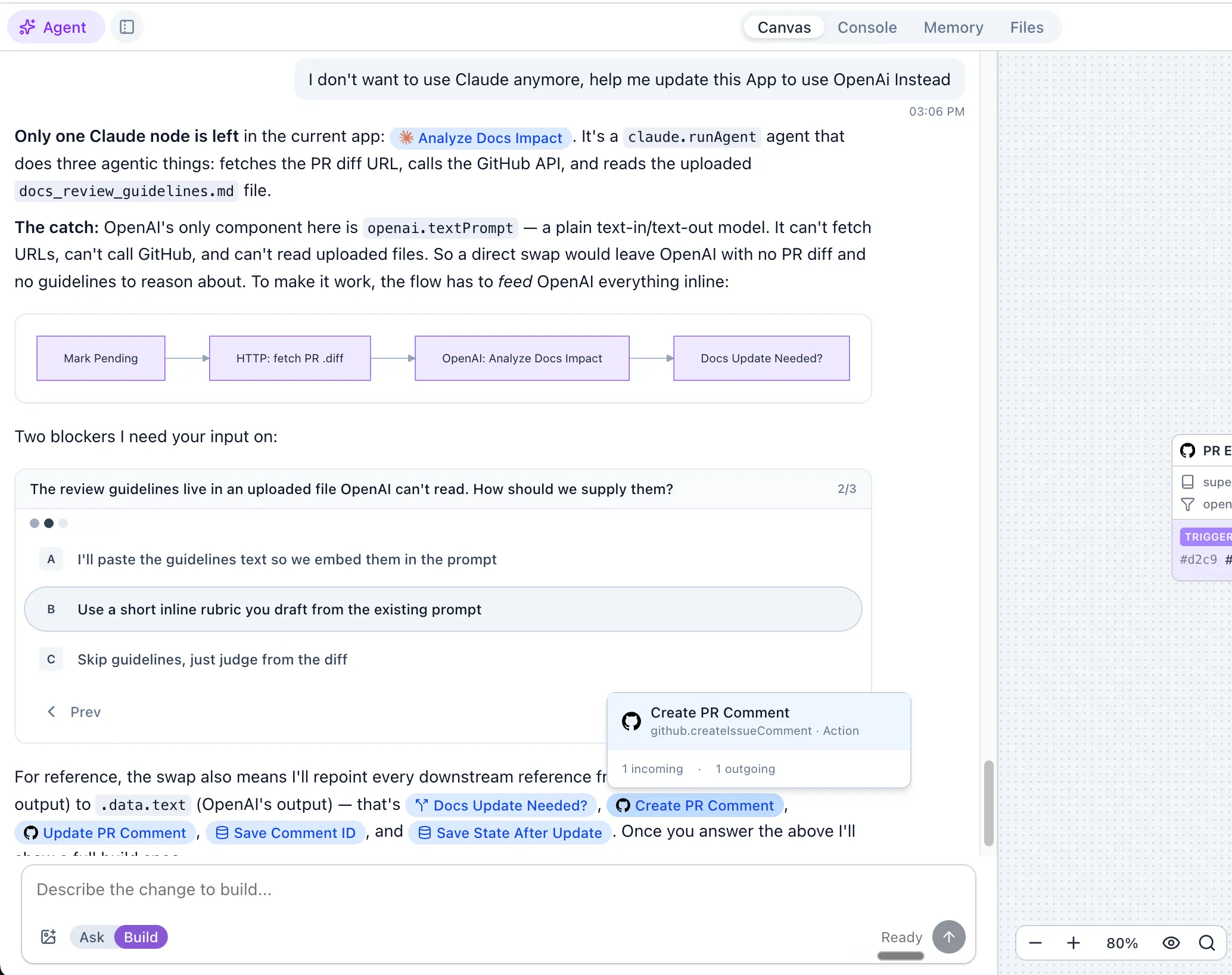
What the agent can do in Build mode:
- Add, remove, and configure canvas nodes and connections
- Swap components (e.g., replace Claude with OpenAI) and rewire downstream references
- Create and edit console panels (numbers, charts, tables, row actions)
- Write and update files in the app repository (scripts, AGENTS.md, README)
- Stage and commit canvas and console changes
- Set up integrations and wire them to nodes
Example prompts:
- “Add a Slack notification after the deploy step”
- “Create a console dashboard with a table of recent deployments”
- “Add an If node that checks if the health check passed”
- “Write a setup script that installs Node.js and nginx”
- “Wire the GitHub trigger to the new approval node”
Best practices:
- Start with a clear description of what you want to build. The agent works best when it understands the full picture before starting.
- For complex workflows, let the agent present a rubric first. Review the plan before approving.
- Use @mentions to reference specific nodes: type
@followed by the node name so the agent targets the right component. - Build incrementally. Add a few nodes, test, then extend — rather than asking for the entire workflow at once.
- Review the agent’s staged changes before committing. The agent stages updates only and cannot commit directly.
Ask mode
Section titled “Ask mode”Ask mode is read-only. The agent can inspect your app’s state, analyze runs, and answer questions without making changes.
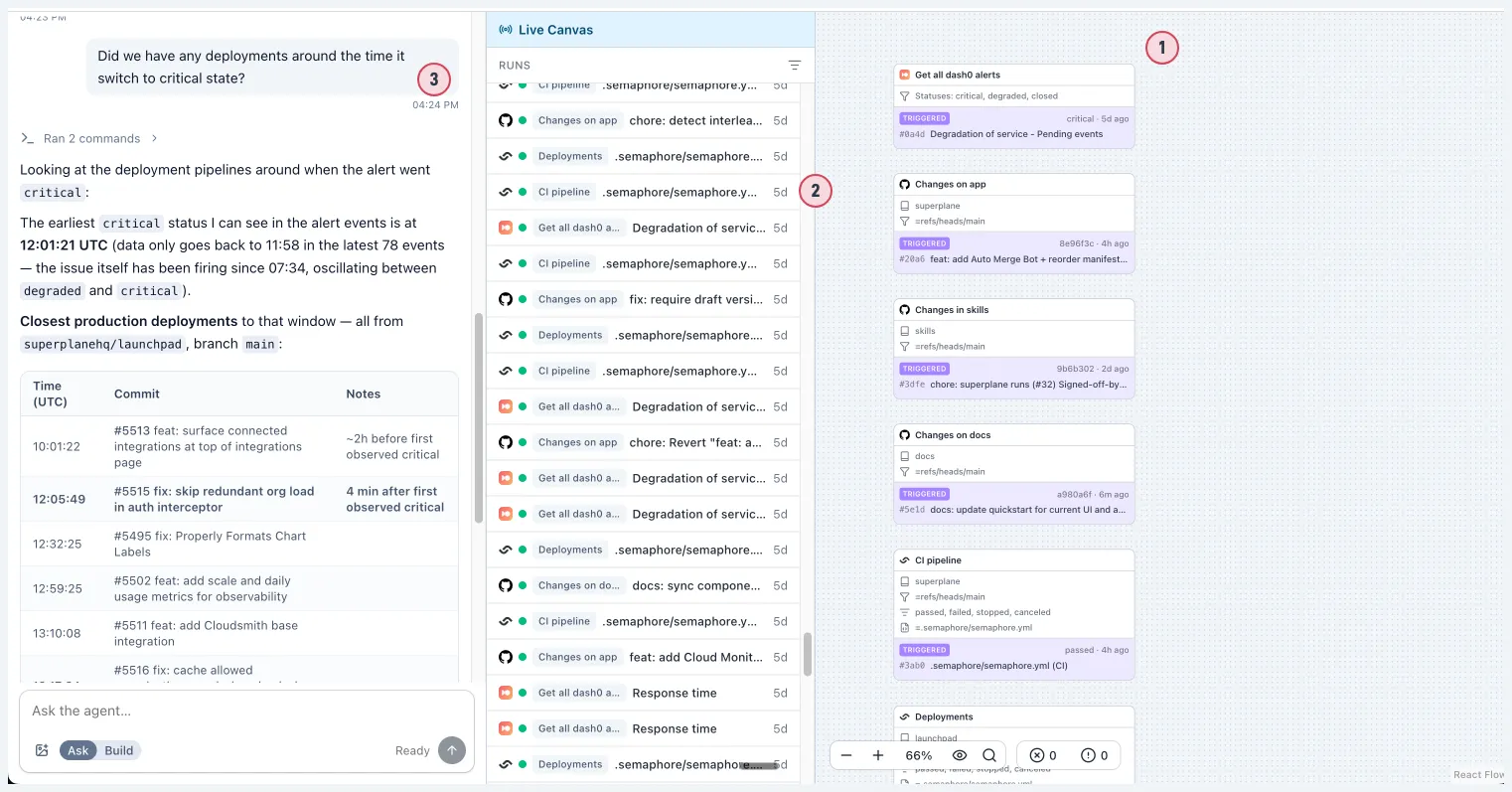
- Add trigger components that record events from your external tools (alerts, deployments, CI pipelines)
- Wait for data to collect — each trigger event creates a run with its payload
- Ask the agent to analyze and cross-reference events from multiple sources
What the agent can do in Ask mode:
- Inspect recent runs and execution history
- Read node payloads and configuration
- Check canvas memory values
- Analyze failed executions and suggest fixes
- Explain how the workflow works
- Review queued events
Example prompts:
- “Why did the last deploy fail?”
- “Show me the payload from the Get PR Details node”
- “What’s in the preview-envs memory namespace?”
- “How does the approval flow work?”
- “Are there any queued events on the SSH setup node?”
- “Check the latest 50 deploys to production. Can you give me a chart with duration? Are there any outliers?”
The agent can render charts, tables, and statistical analysis inline in the chat:
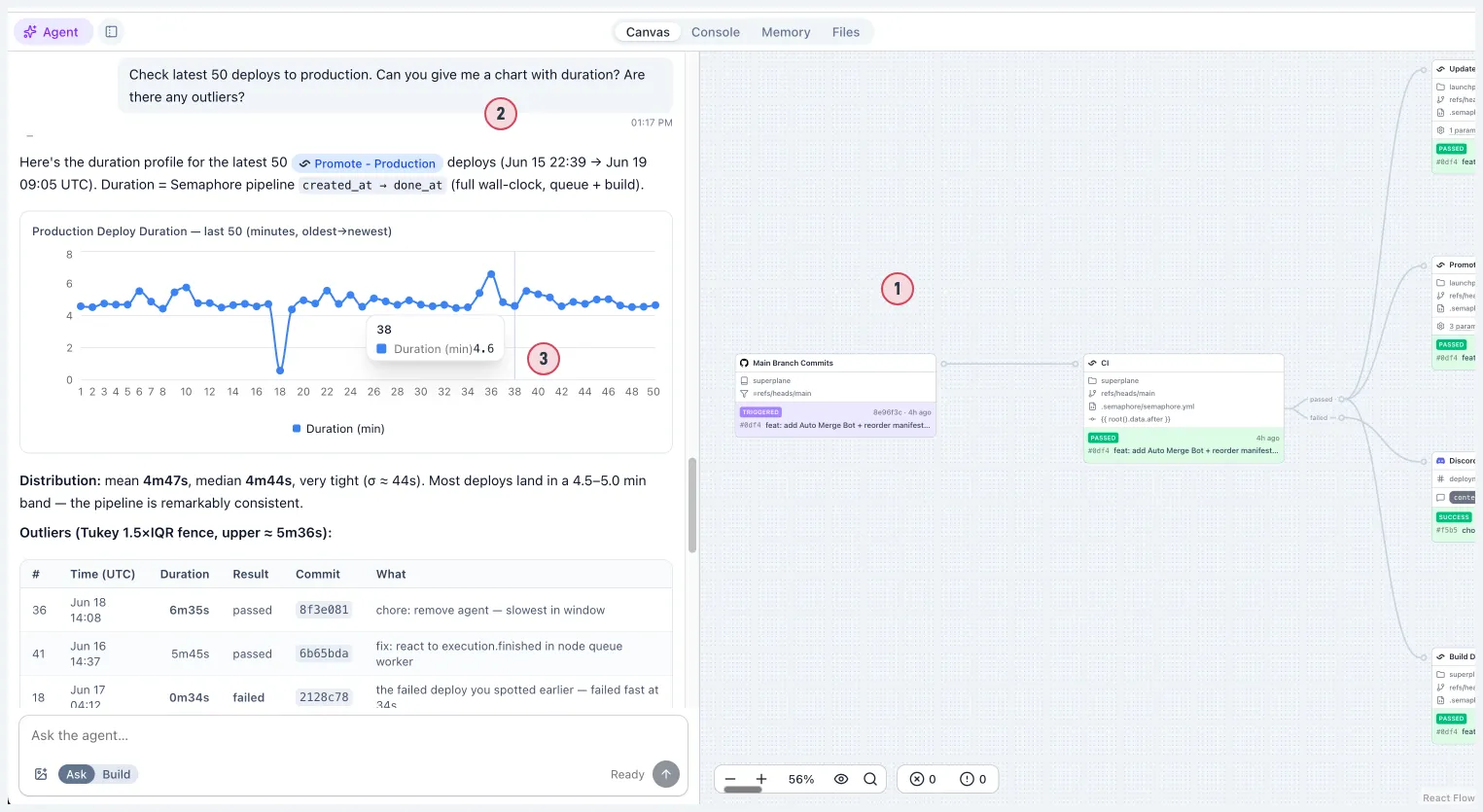
- Set up a workflow through SuperPlane (e.g., a deployment pipeline)
- Ask the agent for analysis — duration trends, outliers, optimization opportunities
- The agent renders charts, tables, and statistical breakdowns directly in the conversation
Best practices:
- Switch to Ask mode when you are debugging or monitoring. It prevents accidental changes.
- Be specific about which run or node you are asking about. The agent can inspect any recent run, but referencing the right one helps.
- Use Ask mode to understand an unfamiliar app before making changes in Build mode.
- Add trigger components that record events from your external tools (alerts, deployments, CI pipelines). Once the data is collected, Ask mode can cross-reference events across sources — for example, finding which deployments happened around the time an alert went critical.
Chat persistence and streaming
Section titled “Chat persistence and streaming”Each app has a single, permanent chat session. Your conversation history persists across browser reloads and sessions.
When you send a message, the agent’s responses stream back asynchronously. You can continue working on the canvas while the agent processes your request.
Interrupting the agent
Section titled “Interrupting the agent”If the agent is heading in the wrong direction or taking too long, click Stop to halt its current operation and return control to you.
Rubrics
Section titled “Rubrics”For complex tasks, the agent uses a rubric to confirm its plan before building.
When you ask the agent to build something broad (like “add health checking”), it first asks clarifying questions. Once it has enough context, it presents a rubric — a specification of what it intends to build, including the flow, components, and integrations.
Review the rubric and either request changes or click Start Building to approve. The agent does not modify your canvas until you approve.
Node mentions
Section titled “Node mentions”Reference canvas nodes in your messages by typing @ followed by the node name. This gives the agent the exact node ID and context, so it targets the correct component when answering questions or making updates.
Tools and capabilities
Section titled “Tools and capabilities”The agent has built-in tools to interact with your app:
Repository file tools — list, read, write, and delete files in your app’s repository. Stage changes in the app’s staging area.
Canvas and console tools — modify canvas.yaml and console.yaml configurations directly. Add nodes, update connections, and build dashboard panels.
Runtime read tools — inspect recent runs, read event payloads, check execution queues, and read memory values. Available in both Build and Ask modes.
Permissions and safety
Section titled “Permissions and safety”The agent operates within strict boundaries:
- RBAC enforcement: The agent shares your session’s permissions. It cannot do anything you cannot do. See RBAC.
- Canvas isolation: The agent is bound to its parent app. It cannot read or modify other apps.
- Staging only: The agent stages updates only. It cannot commit changes directly.
- File safety: The agent cannot access system paths or traverse outside the repository workspace.
Limits
Section titled “Limits”- Query limits: Runtime reads and file listings are paginated (up to 40 items per query).
- Context management: Long conversations are automatically truncated to fit the provider’s context window, preserving the most recent messages.
Provider setup
Section titled “Provider setup”The built-in agent is powered by Anthropic’s Claude. To enable the agent in a self-hosted deployment, configure these environment variables:
ANTHROPIC_API_KEY: Your Anthropic API key.ANTHROPIC_AGENT_ID: The ID of your managed agent.ANTHROPIC_ENVIRONMENT_ID: The ID of your Anthropic environment.
If these variables are not set, the agent interface is disabled.